How to update theme or plugin? Tired of complicated updates or worrying you might break your site? The Easy Theme and Plugin Upgrades plugin makes it super simple to keep everything fresh — without losing the old versions.
How It Works? Install and activate the plugin. When you want to update a theme or plugin, just upload the new ZIP file. The plugin automatically saves a backup of your old version. It then replaces it with the new one — done! Updating a Theme (Step-by-Step)
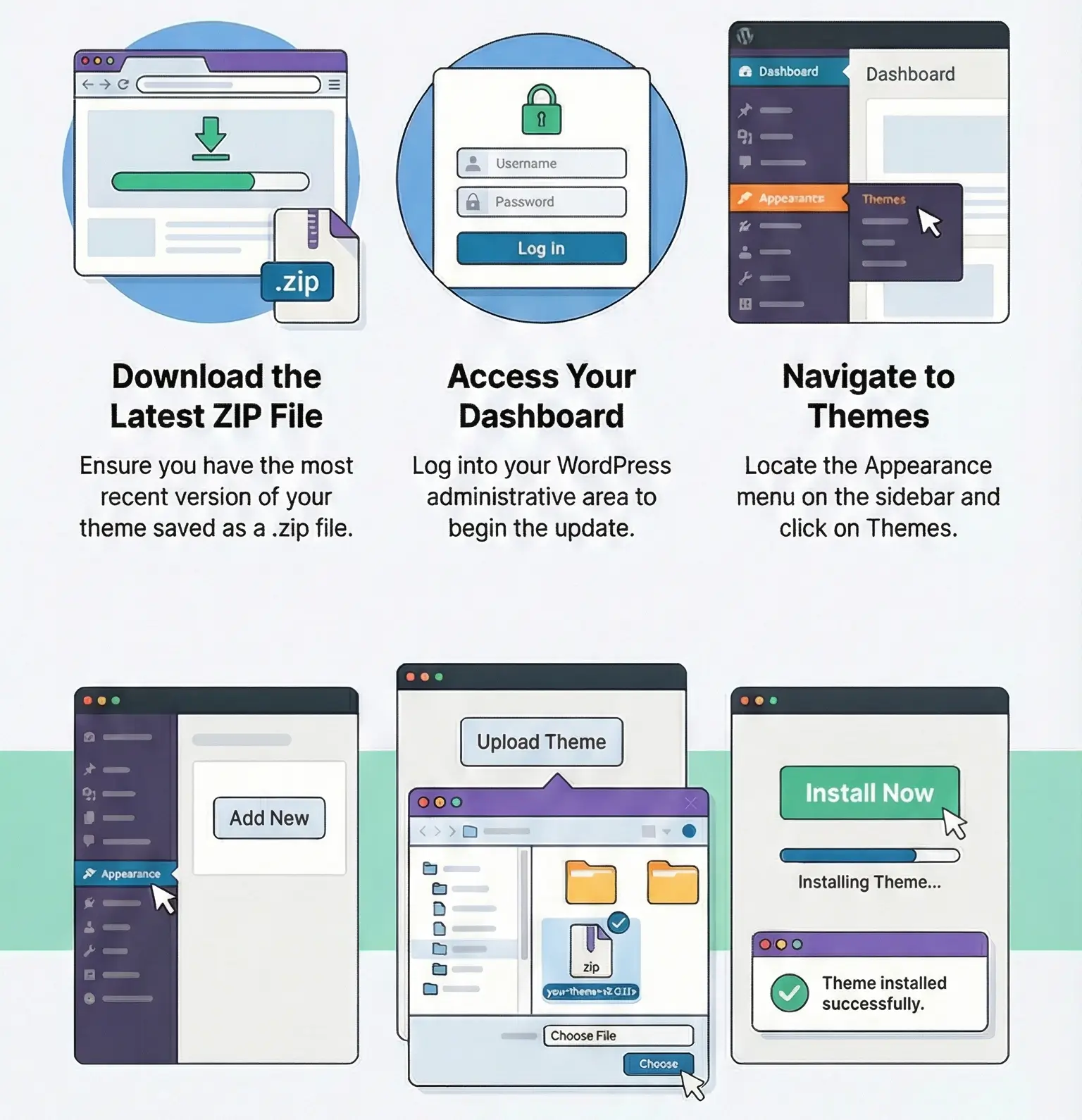
Download the latest ZIP file of your theme. Log into your WordPress dashboard. Go to Appearance > Themes. Click Add New at the top. Click Upload Theme. Choose your ZIP file. Click Install Now — that’s it! Updating a Plugin (Step-by-Step)
Download the latest ZIP file of your plugin. Log into your WordPress dashboard. Go to Plugins → Add New. Click Upload Plugin. Select your ZIP file. Click Install Now and then activate it. Activate the plugin.
Updating via FTP (When the file is too big) Sometimes WordPress won’t let you upload large files. In that case, you can update manually using FTP.
Unzip the new theme or plugin on your computer. Connect to your site with an FTP client like FileZilla . Go to wp-content/themes or wp-content/plugins . Upload the new files and overwrite the old ones. Go back to WordPress and activate the updated version. ✅ Bottom line: With Easy Theme and Plugin Upgrades, you can keep your site up-to-date in just a few clicks — safely, quickly, and without stress.
This website uses cookies to improve user experience. By continuing to use the site, you consent to the use of cookies.
Accept